The Ultimate Screaming Frog SEO Spider Guide
Whether you are running a personal blog, managing e-commerce sites with millions of URLs, or leading technical operations at an enterprise agency, website crawling is the backbone of technical Search Engine Optimization (SEO). Among the arsenal of tools available to modern SEO professionals, one software stands out as an absolute industry standard: Screaming Frog SEO Spider.
Unlike web-based SaaS crawlers that execute rendered requests across remote cloud servers with strict usage caps, Screaming Frog is a powerful desktop application. It puts full control in your hands—allowing you to manipulate crawl speed, execute complex JavaScript, scrape custom elements with XPath, integrate directly with Google APIs, and even run AI prompts across dynamic DOM content.
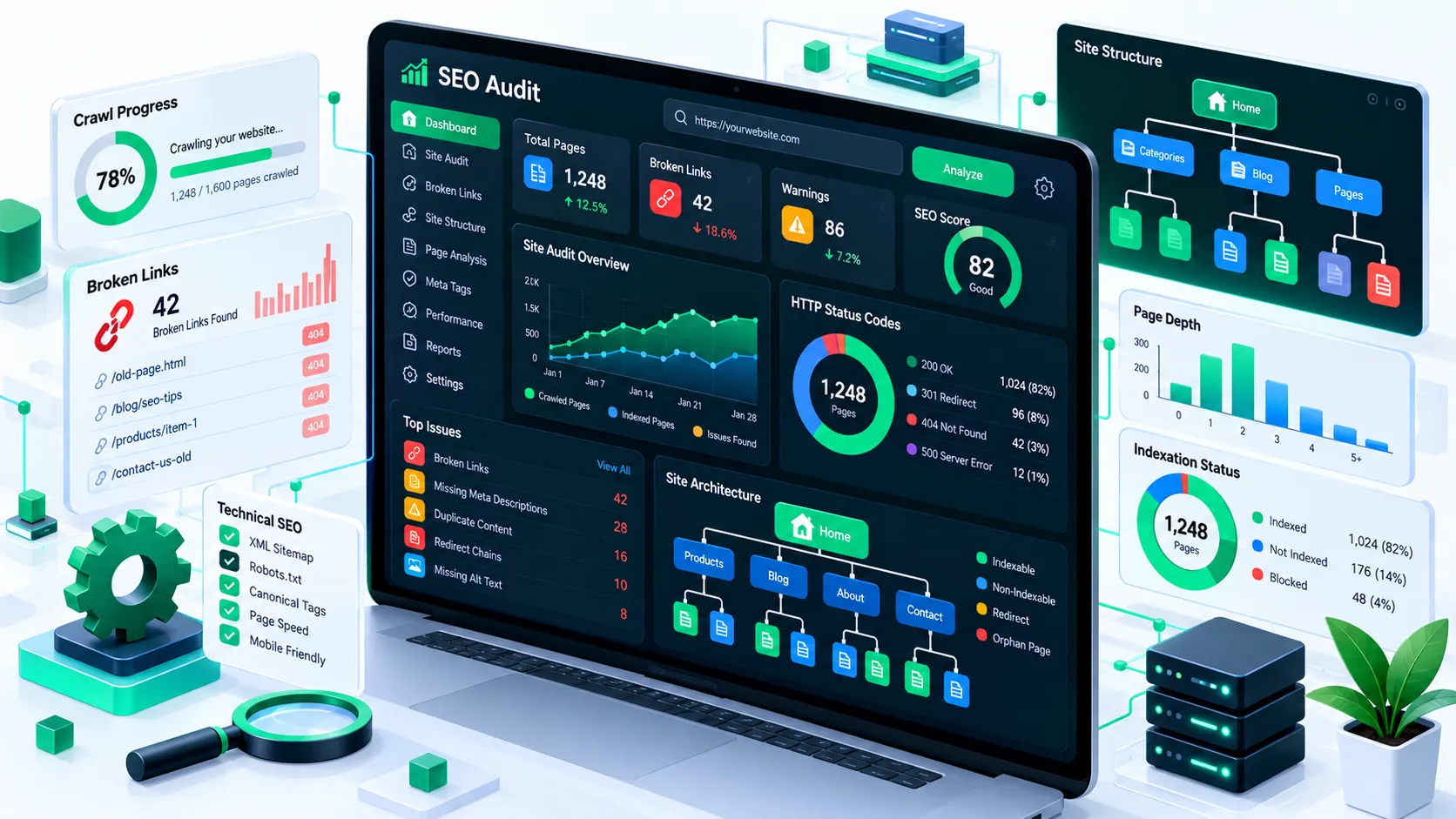
In this ultimate guide, you will learn how to configure, execute, and analyze website crawls using Screaming Frog. From basic memory allocation and subfolder scoping to advanced orphan page discovery and AI-assisted metadata generation, this guide provides the exact workflows needed to conduct thorough technical audits.
1. What is Screaming Frog SEO Spider & Why Use It?
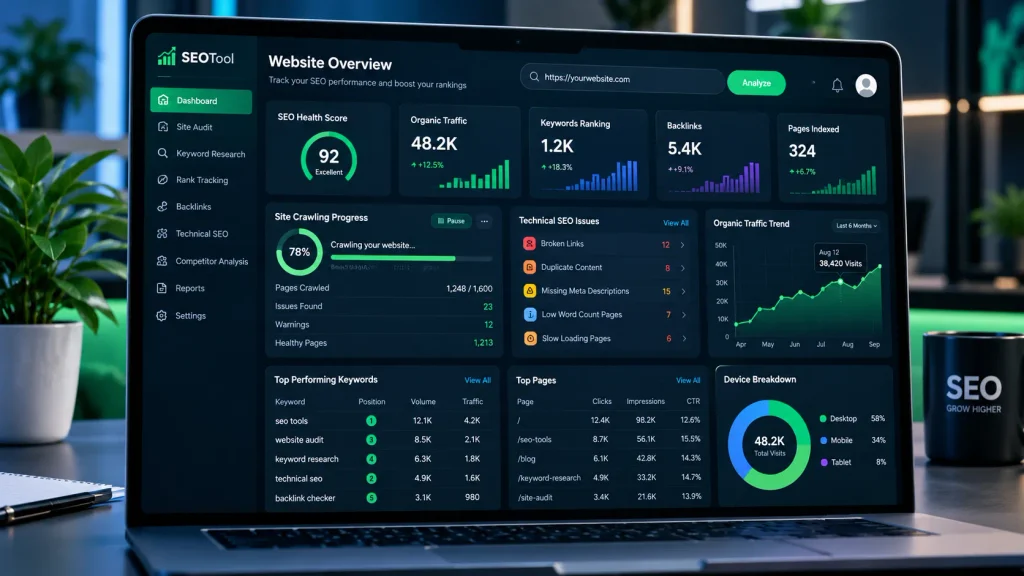
The Screaming Frog SEO Spider is a fast, flexible desktop program designed to crawl websites and audit critical technical SEO factors. At its simplest level, Screaming Frog acts much like a search engine spider (such as Googlebot). It fetches a target website’s raw HTML, parses hyperlinks, follows internal link paths, and analyzes assets across the entire domain.
Why Technical SEOs Rely on Screaming Frog
While cloud-based SEO platforms offer convenient scheduled reports, desktop crawling provided by Screaming Frog offers distinct tactical advantages:
- Unmatched Execution Speed & Customization: You are not subject to strict monthly credit limits or fixed cloud request rates. You can adjust thread counts, request delays, user-agent headers, and HTTP request parameters on the fly.
- Granular Local Data Storage: All crawl data is stored locally on your machine or designated SSDs. This ensures data privacy, compliance, and instant offline access without relying on cloud server availability.
- Advanced Scrape & Render Capabilities: You can render dynamic single-page applications (SPAs) built with React, Angular, or Vue via an integrated headless Chromium engine, while simultaneously extracting custom HTML elements using XPath, CSS Path, or Regular Expressions (Regex).
- Direct Third-Party API Integration: Connect your crawl data directly to real-world performance metrics by hooking into Google Search Console (GSC), Google Analytics 4 (GA4), PageSpeed Insights (PSI), and OpenAI or Gemini APIs.
2. System Requirements, Installation, & License Activation
Because Screaming Frog processes thousands of HTTP requests, renders dynamic scripts, and stores complex relational tables locally, performance depends heavily on your system’s hardware specs.
System Requirements
- Operating System: Windows (64-bit), macOS (Intel or Apple Silicon), or Linux (Ubuntu).
- Processor (CPU): Multi-core 64-bit processors (Intel i5/i7/i9, AMD Ryzen, or Apple M-Series chips). Multi-core processing enables faster multi-threaded crawling.
- Storage: Solid State Drive (SSD) or NVMe drive is strongly recommended. Traditional mechanical Hard Disk Drives (HDDs) bottleneck data write speeds during large-scale crawls.
- Random Access Memory (RAM):
- Minimal (Small Sites <10,000 URLs): 8 GB RAM.
- Recommended (Medium Sites <100,000 URLs): 16 GB RAM.
- Enterprise (Large Sites 500,000+ URLs): 32 GB to 64 GB+ RAM.
How to Install Screaming Frog
- Visit the official website (
screamingfrog.co.uk/seo-spider/) and download the installer for your OS. - Run the installer package and follow the system setup wizard.
- Launch the application once installation completes.
Free vs. Paid Version Feature Comparison
While the free version is functional for basic checks, enterprise-level technical audits require a paid license key.
| Feature / Capability | Free Version | Paid License ($259/year) |
| Crawl Limit | Strictly 500 URLs per crawl | Unlimited (Bounded only by disk/RAM) |
| Crawl Saving & Loading | Disabled | Full Access (Auto-save & manual project saves) |
| Configuration Controls | Basic adjustments only | Full Access (Include/Exclude, Speed, JS rendering) |
| Custom Extraction (XPath/Regex) | Disabled | Unlimited custom extractors & scrapers |
| API Integrations | Disabled | GA4, GSC, PageSpeed, OpenAI, Gemini, Ollama |
| JavaScript Rendering | Disabled (Static HTML only) | Integrated Chromium Engine |
| Sitemap Generation | Basic XML Sitemaps | Advanced XML, Image, & Mobile Sitemaps |
| Crawl Comparison / Staging | Disabled | Full baseline comparisons & diff reports |
| Scheduling Crawls | Disabled | Automated single or recurring crawls |
License Activation Step-by-Step
- Purchase a license key from the Screaming Frog pricing page.
- Open the desktop application and navigate to
Licence > Enter Licence Keyin the top navigation bar. - Input your Username and Licence Key.
- Click OK and restart the application. The title bar will update to reflect your active license, lifting the 500-URL cap.
3. Initial Storage & Memory Configuration
Before running your first large audit, configure Screaming Frog’s system settings to prevent application freezes or out-of-memory crashes.

Memory Storage vs. Database Storage Mode
Screaming Frog offers two distinct storage engines accessible via File > Settings > Storage Mode:
1. Database Storage Mode (Recommended Default)
This mode writes crawl data directly to an internal database stored on your hard drive (SSD/NVMe).
- Pros: Allows you to crawl millions of URLs without filling up system RAM, automatically saves crawls as they run, and supports fast project loading.
- Cons: Requires a fast SSD drive. Running Database Storage on a mechanical HDD causes noticeable latency.
2. RAM Storage Mode
This mode keeps all crawl data in your computer’s active memory (RAM).
- Pros: Ultra-fast execution and processing speed for small-to-medium site audits.
- Cons: If your crawl exceeds available RAM, the application will freeze and un-saved crawl progress will be lost.
How to Allocate More RAM
By default, Screaming Frog allocates a conservative default allotment of memory (often 2 GB to 4 GB). To adjust memory allocation based on your hardware:
- Navigate to
File > Settings > Memory Allocation. - Adjust the slider or type your desired RAM limit in Gigabytes (GB).
- Rule of thumb: Allocate roughly 70–80% of your total system RAM. For example, on a 16 GB RAM laptop, allocate 12 GB to Screaming Frog, leaving 4 GB for your operating system and browser.
- Click OK and restart Screaming Frog for the memory changes to take effect.
4. Step-by-Step: How to Run Your First Crawl
Screaming Frog operates in two main modes: Spider Mode and List Mode.
1. Spider Mode (Full Domain Crawl)
Spider mode is used for holistic site audits where you want to discover every accessible link starting from a seed URL.
- Set the mode switcher in the top menu to
Mode > Spider. - Enter your target home page URL into the input field at the top (e.g.,
https://example.com/). - Click the Start button.
- Watch the progress bar update in real-time. You can pause, resume, or stop the crawl at any point.
2. List Mode (Auditing Specific URLs)
List mode isolates crawling strictly to a pre-defined set of URLs, skipping recursive discovery of sub-links.
- Set the top menu to
Mode > List. - Click the Upload button to choose your input source:
- File: Upload a CSV, TXT, or Excel spreadsheet of URLs.
- Enter Manually: Copy and paste a list of URLs directly.
- Download XML Sitemap: Enter an active sitemap URL (e.g.,
https://example.com/sitemap.xml) to extract and audit sitemap contents directly.
- Click Start to run the targeted crawl.
3. Exclude & Include Rules (Subpath Isolation)
To keep crawls focused and save system resources, use Regex pattern rules to include or exclude subdirectories.
Excluding Subdirectories
Go to Configuration > Exclude to define paths you want to ignore:
# Exclude Search, Cart, Account, and Parameterized URLs
\?
/search/
/cart/
/account/
.*(?:\?|&)sort=
Including Specific Subdirectories
Go to Configuration > Include when you want to restrict crawling exclusively to target directories (e.g., auditing only the blog):
# Crawl ONLY blog articles and category subpaths
https://example\.com/blog/.*
5. Advanced Technical SEO Audits Using Screaming Frog
Real-World Technical SEO Cases & Edge-Case Troubleshooting
What’s included: Handling 403 Forbidden errors, bypassing CDN/Cloudflare rate limits, adjusting User-Agents, and crawling staging sites protected by Password / Basic Authentication.
Now let’s cover step-by-step instructions for executing actionable, real-world technical SEO audits.
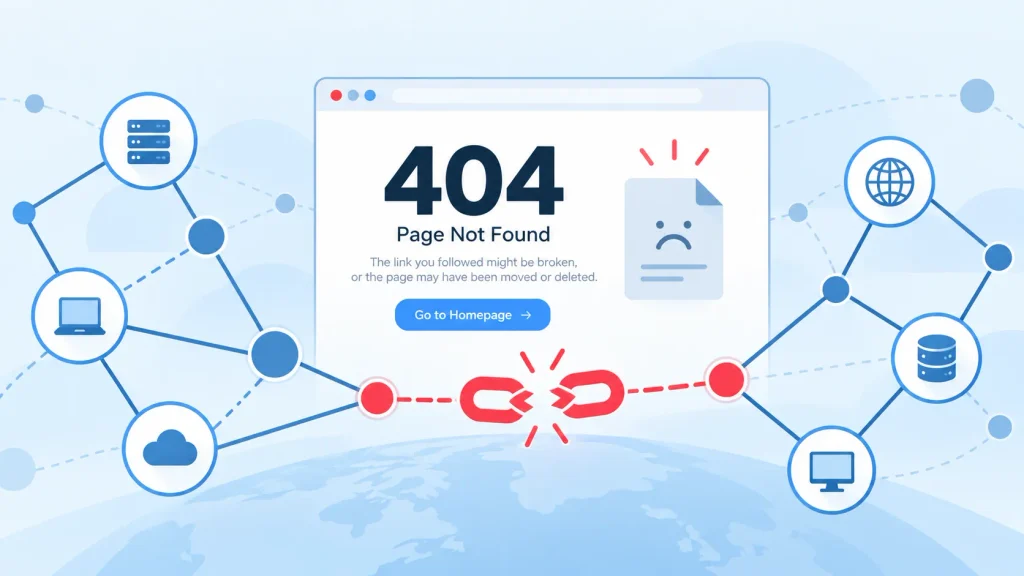
1. Finding & Fixing Broken Links (404 Errors)
Broken internal links pass zero link equity, waste crawl budget, and create a poor user experience.
Execution Steps:
- Complete your crawl in Spider Mode.
- Click the Response Codes tab in the top navigation panel.
- In the top-left filter dropdown, select Client Error (4xx).
- Click on any specific broken URL listed in the top window pane.
- Look at the lower pane window and select the Inlinks tab. This reveals every page on your site containing a link pointing to that 404 URL, along with the anchor text used.
Export Workflow:
Go to top menu > Bulk Export > Response Codes > Client Error (4xx) Inlinks
This exports a comprehensive spreadsheet mapping every broken target link back to its exact source URL and anchor text for developers to fix.
2. Auditing Redirect Chains, Loops, & 302s
Redirect chains ($A \rightarrow B \rightarrow C$) increase page load latency and slow down indexation. Temporary 302 redirects prevent search engines from passing long-term link equity.
Execution Steps:
- Navigate to
Reports > Redirects > Redirect Chainsin the main menu bar. - Export the generated matrix spreadsheet to view the total chain length, redirect hops, initial source, and final destination $200\text{ OK}$ status codes.
- To find 302 redirects, go to the Response Codes tab, filter by Redirection (3xx), and inspect the Redirect URL column in the lower details pane.
Action Item: Update internal links pointing to redirected endpoints directly to the final $200\text{ OK}$ destination URL.
3. Auditing Page Titles, Meta Descriptions, & Headings
Optimizing snippet elements remains one of the highest-leverage on-page SEO tasks.
Execution Steps:
- Click on the Page Titles or Meta Description top tabs.
- Use the Filter Dropdown to categorize issues:
- Missing: Pages completely lacking title tags or descriptions.
- Duplicate: Pages sharing identical metadata (indicates potential duplicate content).
- Over 60 Characters / Over 580px: Elements at risk of truncation in SERP snippets.
- Below 30 Characters / Below 200px: Under-optimized tags failing to leverage target keywords.
- Multiple: Pages containing duplicate title tags or multiple H1 tags injected via template bugs.
4. Directives, Canonical Tags, & Indexability Analysis
Ensure search engine crawlers are indexing primary URLs while respecting canonical boundaries.
Execution Steps:
- Navigate to the Directives tab to audit
noindex,nofollow,noarchive, andnosnippettags present in either HTML meta elements or HTTP headers (X-Robots-Tag). - Select the Canonicals tab and apply the following key filters:
- Canonicalised: Shows pages where the canonical tag points to a different URL (e.g., parameter pages canonicalizing to a primary page).
- Non-Indexable Canonical: Highlights critical setup errors where a page canonicalizes to a target URL that is blocked by
robots.txt, set tonoindex, or returning $4\text{xx}/5\text{xx}$ error codes.
5. Detecting Duplicate Content & Near-Duplicates
Identical or near-identical content dilutes topical authority and leads to keyword cannibalization.
Execution Steps:
- Go to
Configuration > Content > Duplicates. - Enable Check for Near Duplicates and set your similarity threshold (typically 85%).
- Under Exclude HTML Elements, check common boilerplate sections (e.g.,
nav,header,footer) to prevent sitewide elements from skewing results. - Run your crawl. Once complete, navigate to
Crawl Analysis > Startin the top menu to run post-crawl duplicate matching. - Inspect results under the Content tab under Exact Duplicates and Near Duplicates.
6. Crawling JavaScript Websites (Angular, React, Vue, Next.js)
Custom Extraction Blueprint (Data Scraping with Regex & XPath)
- What’s included: Exact copy-paste Regex and XPath snippets for extracting JSON-LD Schema structured data, Open Graph social tags, and tracking script codes directly during a crawl.
Single-Page Applications relying on client-side JS rendering hide internal links and dynamic content from standard static HTML crawlers.
Execution Steps:
- Go to
Configuration > Spider > Rendering. - Change the Rendering drop-down from Text Only to JavaScript.
- Select your target device viewport (Desktop or Mobile).
- (Optional) Adjust Enable AJAX and set render wait timeouts (e.g., 5,000ms) if your web apps depend on delayed API calls to load DOM content.
- Run the crawl. Click the Rendered Page tab in the lower pane to visually verify rendered DOM layouts against raw source HTML.
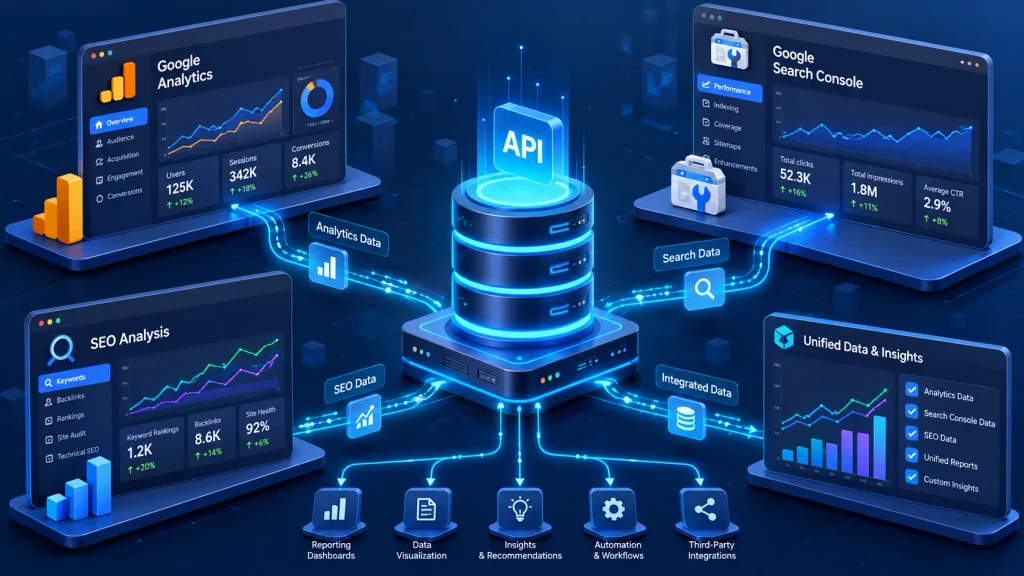
7. Discovering Orphan Pages with GA4 & Google Search Console APIs
An Orphan Page is a URL that receives active traffic or organic impressions but has zero internal links pointing to it within your site navigation.
Execution Steps:
- Go to
Configuration > API Access > Google Search Console. - Authenticate your Google account, select your target domain property, and select your date range (e.g., Last 90 Days).
- Go to
Configuration > API Access > Google Analytics 4, connect your GA4 property, and select metrics (e.g., Sessions, Views). - Crucially, under both API setup windows, check the option: “Crawl New URLs Discovered In GA4 / Search Console”.
- Run your crawl in Spider Mode.
- Once complete, open the Search Console or Analytics tabs and apply the filter Orphan URLs.
- Result: Screaming Frog cross-references API data against internal link paths to expose orphan landing pages that need internal links.
8. Automating Alt Text & Descriptions with AI Prompts (OpenAI / Gemini)
Leverage Large Language Models directly inside Screaming Frog to automate large metadata and asset audits.
Execution Steps:
- Go to
Configuration > API Access > OpenAI(or Gemini/Anthropic). - Paste your API key and select your preferred model (e.g.,
gpt-4oorgemini-1.5-pro). - Click Add Prompt to build dynamic LLM extraction instructions using template variables:
Prompt Template:
"You are an expert SEO copywriter. Generate a compelling, click-worthy meta description under 150 characters for the page titled '[Page Title]' with the main heading '[H1]'. Include a clear call to action."
- For image ALT text, select image extraction mode and instruct vision models to generate concise, descriptive ALT text attributes based on raw image source URLs.
- Export results directly into your content management workflow.
6. Visualizing Site Architecture & Generating XML Sitemaps
Analyzing crawl depth and structural hierarchy helps ensure critical revenue-generating pages are easily accessible to users and search bots.

Site Architecture Visualizations
Access interactive network maps via the top menu: Visualisations.
- Force-Directed Crawl Diagrams: Displays internal linking network graphs as visual node clusters. Large hub nodes represent primary category hubs; isolated peripheral nodes highlight poorly linked content.
- Directory Tree Graphs: Renders a horizontal hierarchical graph displaying exact crawl depth levels ($1\text{ to }N$ clicks away from home page).
SEO Guideline: High-value indexable pages should generally reside within 3 clicks of depth from the home page.
Generating XML & Image Sitemaps
To generate clean XML sitemaps stripped of non-indexable URLs:
- Click
Sitemaps > XML Sitemapin the top navigation. - Select target tabs to include (
Pages,Images). - Under the Export Options tab, uncheck non-indexable content types:
- Exclude $3\text{xx}$ Redirects, $4\text{xx}$ Errors, and $5\text{xx}$ Server Errors.
- Exclude
Noindexpages and Canonicalised URLs. - Exclude URLs blocked by
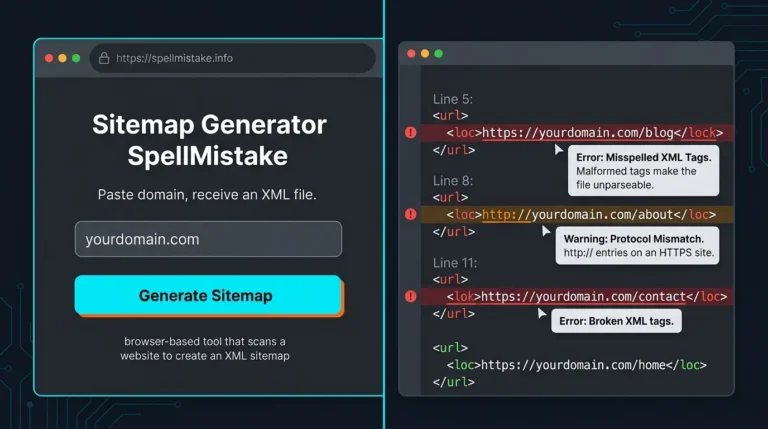
robots.txt.
- Click Export to write a valid
sitemap.xmlfile ready for deployment to your server.
7. Troubleshooting Common Errors & Edge Cases
When auditing enterprise environments, security layers or local configuration limits can occasionally interrupt your crawl. Here is how to fix common technical errors:
1. HTTP 403 Forbidden / Cloudflare WAF Blocks
- Cause: The target site’s Web Application Firewall (WAF) identifies default Screaming Frog header signatures as an unauthorized bot attack.
- Fix:
- Go to
Configuration > User-Agent. - Change the preset User-Agent from Screaming Frog SEO Spider to Googlebot Desktop or Chrome – Windows.
- Go to
Configuration > Speedand decrease Max Threads to1or2, adding a Pause Between Requests (e.g.,500ms) to emulate human browsing speed.
- Go to
2. Memory Overflows & Mid-Crawl Freezes
- Cause: Running large memory-intensive crawls that exceed available system RAM allocation.
- Fix:
- Switch to Database Storage Mode (
File > Settings > Storage Mode > Database Storage). - Free up local disk space on your internal SSD drive.
- Increase RAM allocation limit under
File > Settings > Memory Allocation.
- Switch to Database Storage Mode (
3. Auditing Staging Sites Behind Basic Authentication
- Cause: Pre-production staging servers require login credentials to prevent public access.
- Fix:
- Go to
Configuration > Authentication. - Under the Basic / Digest Tab, add your staging server URL domain along with the required Username and Password.
- If your site uses interactive HTML login forms, switch to the Standards / Web Forms tab, click Add, and enter login form fields to authenticate the session before crawling.
- Go to
The 10-Step Agency-Grade Technical SEO Audit Workflow
- What’s included: A practical step-by-step agency checklist that guides users from initial crawl configuration to presenting audit reports to clients.
8. Frequently Asked Questions (FAQs)
Q1: Is Screaming Frog SEO Spider completely free to use?
Yes, Screaming Frog offers a free tier with no expiration date. However, the free version limits crawling to 500 URLs per crawl and disables advanced functionality including custom extraction, JavaScript rendering, crawl saving, and API integrations.
Q2: How much RAM is needed to crawl a site with 500,000+ pages?
To crawl 500k+ URLs efficiently, we recommend a machine equipped with 16 GB to 32 GB of RAM paired with a fast NVMe Solid State Drive (SSD). Ensure that Storage Mode is set to Database Storage Mode to write data directly to the disk instead of consuming active RAM.
Q3: Why is Screaming Frog missing dynamically loaded content on my site?
By default, Screaming Frog fetches static raw HTML responses without running client-side scripts. If your site uses frameworks like React, Angular, or Vue, switch your rendering mode via Configuration > Spider > Rendering and select JavaScript mode.
Q4: How do I export all crawl issues into a single folder for developers?
Navigate to Bulk Export > Issues > All in the top menu bar. Screaming Frog will generate a structured folder containing individual spreadsheets (in CSV or Excel formats) detailing every issue, warning, and opportunity along with source and target URL matrices.
Q5: Can Screaming Frog run automatically on a schedule?
Yes, licensed users can configure scheduled crawls via File > Scheduling. You can set up one-off or recurring automated crawls that execute in the background, save crawl files, and export summary reports automatically.
Conclusion & Strategic Checklist
The Screaming Frog SEO Spider is much more than a simple broken-link checker—it is a comprehensive command center for technical SEO auditing. By tailoring storage modes, tuning user-agent profiles, building custom extraction rules, and integrating Google and AI APIs, you can uncover critical technical gaps that hold back your site’s search visibility.

Faisal Bhatti is the founder of FBguestpostservice.online, a specialized link building and digital PR outreach agency helping businesses, SEO agencies, and content creators grow their organic search visibility. With hands-on experience in white-hat backlink acquisition, editorial content placement, and authority-building outreach campaigns, Faisal Bhatti has helped clients across a wide range of niches — including technology & SaaS, business & finance, health & wellness, travel & tourism, lifestyle & fashion, education & e-learning, real estate, legal, home improvement, automotive, food & beverage, beauty & cosmetics, sports & fitness, gaming & entertainment, parenting & family, marketing & advertising, e-commerce & retail, crypto & blockchain, and B2B/SaaS industries — secure high-quality, contextually relevant backlinks that drive real, sustainable ranking growth. He is passionate about delivering genuine, quality-first SEO solutions rather than shortcuts, and continues to expand the FB Guest Post Service suite with practical, results-focused SEO tools.